
Meeting Room Booking Panels and Control Systems: A Buyer's Guide for UAE Offices
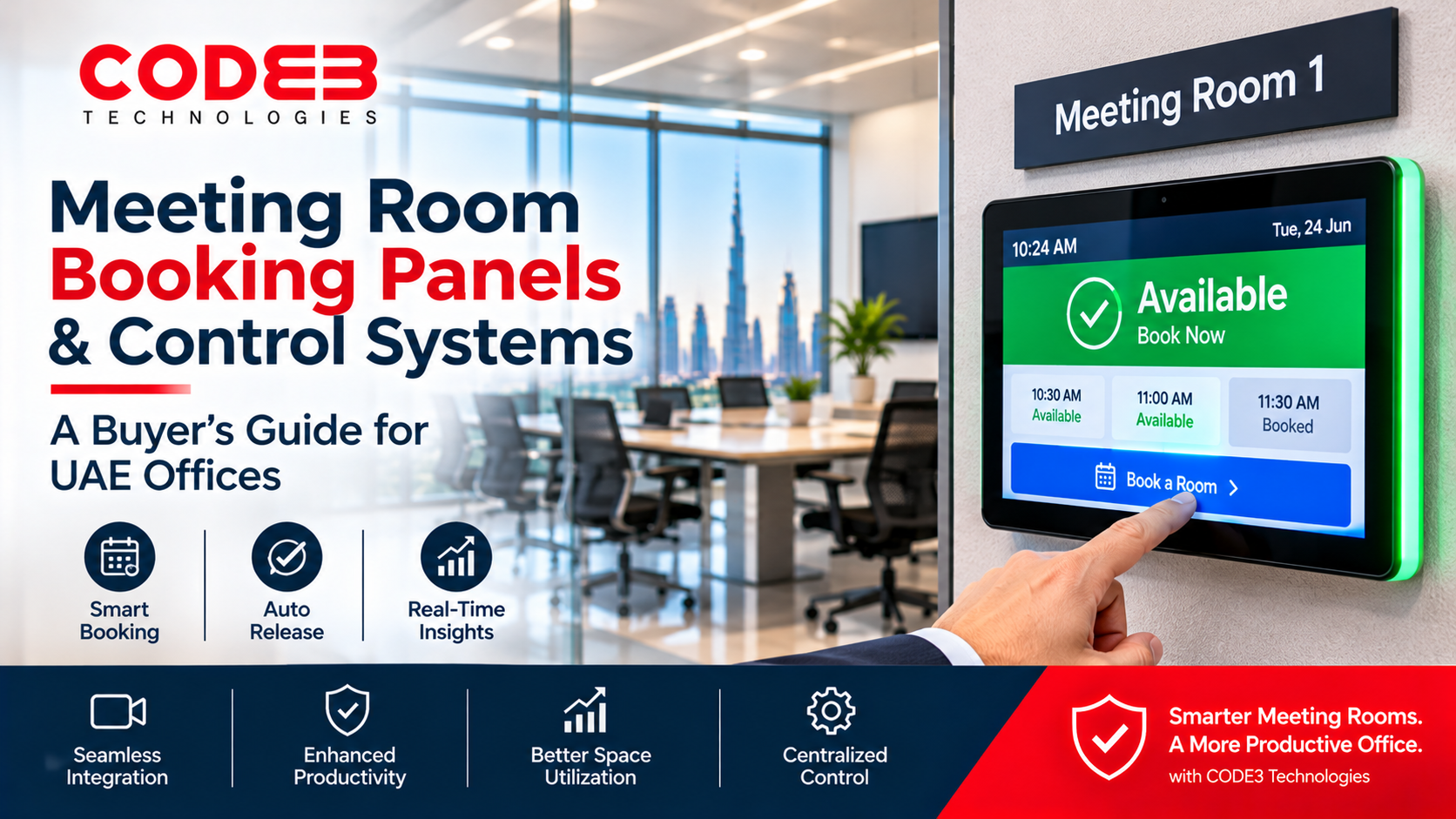
Most offices in Dubai don't actually have too few meeting rooms. They have too few rooms that are actually free. The calendar says the boardroom is booked from 10 to 12, so nobody goes near it, while it sits empty because the meeting was cancelled in a WhatsApp group and nobody released the booking. Meanwhile, two people have taken over the 8-seat room for a quick call, and a client is waiting in reception while someone walks the corridor looking for a free space.
Meeting room booking panels fix this, but only when they're chosen and set up properly. This guide covers what these systems actually are (the names are confusing), how they work with Microsoft 365 and Google Workspace, what to look for, and the mistakes that make a panel just an expensive clock on the wall.
Booking Panel, Scheduling Display, Room Control System: What Is the Difference?
You will see several names for this technology, and vendors use them loosely. Here is how they relate:
- Meeting room booking panel / room scheduling display: the small touchscreen (usually 7" or 10") mounted beside the door or on the glass. It shows whether the room is free or busy, usually with an LED light bar visible from down the corridor, and lets people book, extend or end a meeting right there.
- Room booking system: the full setup - the panels, plus the software that connects them to your calendar, a web or mobile app for booking from anywhere, and a dashboard for the facilities team.
- Meeting room control system: this term means two different things. Most people searching for it in the UAE mean the booking and status panel above. In AV projects, though, it can also mean the touch panel inside the room that controls the display, camera, microphones, lighting and blinds. If you are asking suppliers for quotes, say which one you mean, or you may receive a quote for the wrong system.
A well-equipped room often has both: a scheduling panel outside the door that manages who gets the room, and an AV control panel inside it that runs the meeting itself.
How It Works: Your Calendar Is the Real System
A booking panel doesn't keep its own list of bookings. It reads and writes to the room's calendar in Microsoft 365 or Google Workspace. In Microsoft 365 every meeting room is a room mailbox; in Google Workspace it is a calendar resource. When someone adds the room to an Outlook invite, the panel shows it within seconds. When someone books from the panel, the booking appears in Outlook or Google Calendar for everyone.
This is why most problems with booking panels are actually calendar problems. If a room mailbox accepts double bookings, allows unlimited recurring meetings, or has bookings made in someone's personal calendar instead of the room's, the panel faithfully displays the mess. Cleaning up room calendars and booking policies is the first step of any good install, not an afterthought.
The other piece is check-in. When a meeting starts, someone taps "check in" on the panel, or an occupancy sensor detects people in the room. If nobody checks in within a set grace period (10 minutes is common), the system releases the booking and the room turns green again. This single feature is usually what recovers the most capacity, because it clears the ghost meetings automatically.
Is It Worth It? A Quick Way to Check
Before buying anything, look at the problem you are trying to solve. A booking system is usually worth it if two or more of these are true in your office:
- People regularly complain that they cannot find a free room, but when you walk past, rooms are often empty
- Meetings get interrupted by people knocking to ask whether the room is in use
- Recurring meetings stay in the calendar long after the team stopped holding them
- Large rooms are routinely used by one or two people for calls
- You have five or more bookable rooms, or rooms spread across floors or buildings
- You are considering leasing more space because the office "feels full"
That last point matters. A weekly one-hour meeting that nobody attends blocks a room for about 50 hours a year. A few of those per room adds up quickly. Utilization data from a booking system often shows that an office needs different rooms, such as more small huddle rooms and fewer 10-seat rooms, rather than more space. That is a far cheaper fix than a bigger lease.
What to Look For When Choosing a System
- Native integration with your calendar: two-way sync with Microsoft 365/Outlook or Google Workspace, whichever you use. If you run Microsoft Teams Rooms, check that the panel works alongside them. Microsoft-certified Teams panels sign in with the room account, so confirm your Teams Rooms licensing before choosing that route.
- Check-in and automatic release: with a grace period you can configure. Without it, the system just displays ghost bookings more clearly.
- Occupancy sensing: optional, but useful in busy offices. A sensor can confirm a room is really in use, or show that a booked room is empty.
- An LED status light visible from the corridor: so people can see room status without walking up to the screen.
- The right screen size and mounting: a 7" panel is fine beside most doors; a 10" panel suits busy corridors and boardrooms. Check you have a glass mounting kit if your rooms have glass walls, and plan the cable route before the partitions are finished.
- Power over Ethernet (PoE): one network cable powers the panel and connects it, so there is no power socket by every door. Make sure your switches have enough free PoE ports and power budget for every panel.
- Cloud or on-premises: cloud is simpler to run; on-premises keeps booking data on your own servers, which some government, finance and healthcare organizations require. Decide based on your IT and data policies, not the vendor's default.
- Booking from anywhere: a mobile app or web portal so staff can find and book a room before they arrive, which matters for hybrid teams.
- Usage reporting: reports on no-show rates, peak hours and how many people actually use each room. This is what helps you plan future space.
- Branding and language: custom room names and your logo on the panel, and Arabic on the interface if your office needs it. Ask before you buy rather than assume.
Mistakes We See Most Often
- Installing panels before fixing the calendars. If room mailboxes accept conflicting bookings or are named inconsistently, the panels show the same confusion, just on a nicer screen.
- Leaving check-in switched off. Teams often disable it during the pilot to avoid complaints, then never switch it on. The ghost bookings stay.
- Buying panels that do not match your platform. A panel built for one calendar or conferencing platform can work poorly with another. Check compatibility with what you actually run.
- Forgetting the network. Panels need a PoE port, a network cable at each door and a place on the network. They are internet-connected devices, so put them on a separate network segment (VLAN), change default passwords and keep firmware updated.
- Nobody owns it after go-live. Someone needs to handle new rooms, policy changes, firmware updates and the monthly usage report. Otherwise the system slowly stops matching how the office works.
On the network point, the same risks we covered for smart cameras on office networks apply to booking panels too: any connected device on a flat, unmanaged network is an easy way in.
A Simple Rollout Plan
- 1. Audit your rooms. List every bookable space, its real capacity, its equipment, and give it a clear, consistent name.
- 2. Clean up the calendars. Fix room mailboxes or resources, remove dead recurring meetings, and set booking rules such as maximum length, how far ahead people can book, and whether conflicts are allowed.
- 3. Decide the policies. Check-in grace period, who can override a booking, and what happens to recurring meetings that repeatedly no-show.
- 4. Pilot one floor. Install panels on a handful of rooms for two to four weeks and adjust settings based on real use.
- 5. Roll out and announce it. A short message explaining check-in and auto-release prevents most complaints in week one.
- 6. Review the data after 30 days. Look at no-show rates and room sizes against actual attendance, and adjust rooms or policies accordingly.
Where Booking Panels Fit With the Rest of the Room
A booking panel manages who gets the room. What happens inside it is a separate decision: the display, camera and audio for video conferencing, and the overall meeting room setup from huddle space to boardroom. Booking panels also connect well with visitor management: a guest checks in at reception, the host is notified, and the room panel already shows the meeting. Our visitor management buyer's guide covers that side in detail.
How CODE3 Can Help
CODE3 designs and installs meeting room booking and scheduling systems for offices across Dubai, Abu Dhabi and Sharjah: 7" and 10" panels with LED status lights, PoE installation, two-way sync with Microsoft 365, Google Workspace and Teams Rooms, check-in with automatic release, a central dashboard, and cloud or on-premises deployment. We start by cleaning up your room calendars and booking rules, so the system works from the first day, and we support it after go-live as part of our wider audio visual services.
Planning booking panels for your office? Get a free quote and we will start with a walk-through of your rooms, so the recommendation is based on how your teams actually meet.
Plan Your AV Solution and design the right audiovisual setup for your space.
احصل على مقالات عملية في تقنية المعلومات
مقالات قصيرة ومفيدة عن تقنية المعلومات والأمن السيبراني للشركات في الإمارات. بدون رسائل مزعجة.